
Word to JPEG Converter — Turn Any .docx Into a Sharp JPG in Seconds
Sometimes a Word document just needs to be a picture. Maybe you’re sending a contract preview to a client who doesn’t want to download a file. Maybe you’re posting a recipe to Instagram, or pinning a study sheet to Pinterest, or attaching a one-page CV inside an email signature where DOCX attachments get stripped. Whatever the reason, you need your .docx as a clean JPEG — and you need it now, without installing anything, without paying, and without uploading sensitive files to some random server.
That’s exactly what our Word to JPEG converter is built for, don’t forget to read through our how to convert Word to JEG online article
Why convert Word to JPG?
A .docx is a great editing format, but it’s a terrible sharing format. The person on the other end needs Microsoft Word, Google Docs, or LibreOffice just to open it. Worse, the layout often shifts depending on which fonts they have installed.
A JPG fixes all of that:
- Universal: every phone, browser, email client and social platform on earth can display a JPEG.
- Locked layout: what you see is what they see. No font substitutions, no broken bullet points, no awkward page breaks.
- Lightweight: a one-page Word doc usually compresses down to a 100–300 KB image — small enough to attach anywhere.
- Embeddable: drop it straight into a WordPress post, a Notion page, a Slack message or an Instagram story.
- Read-only: the recipient can’t accidentally edit your contract, quote or proposal.
If you’ve been screenshotting Word documents page by page and stitching the images together in Paint, this tool is going to save you a lot of afternoons.
How our Word to JPG converter works
The whole thing runs inside your browser. When you drop a .docx onto the upload area, the file never leaves your computer. The converter reads the document locally, renders it as a styled page, and writes out a JPEG you can download — all in two or three seconds for a typical document.
Here’s what makes it different from most “free” Word to JPEG tools online:
- No upload, no account, no email required. You don’t sign up. We don’t see your file.
- No watermarks. The JPG you download is yours, clean.
- No file limits hidden behind a paywall. Convert as many documents as you want.
- Works offline once the page is loaded. Useful on slow connections or in airport Wi-Fi.
- Privacy by default. Because nothing is uploaded, confidential contracts, medical letters, internal memos and legal drafts stay on your device.
How to convert a Word document to JPEG (step by step)
- Open the converter. Scroll to the upload box at the top of the page.
- Drop your
.docxfile onto the dotted area, or click “browse files” and pick it from your computer. You can also paste a file from your clipboard. - Click “Convert to JPG.” The tool reads the document, lays it out on a virtual page, and renders it as an image.
- Click the green download button next to the file name. Your JPEG saves with the same name as the original document — for example,
invoice-april.docxbecomesinvoice-april.jpg.
That’s the whole flow. No menus, no settings to tweak unless you want to.
Before & After
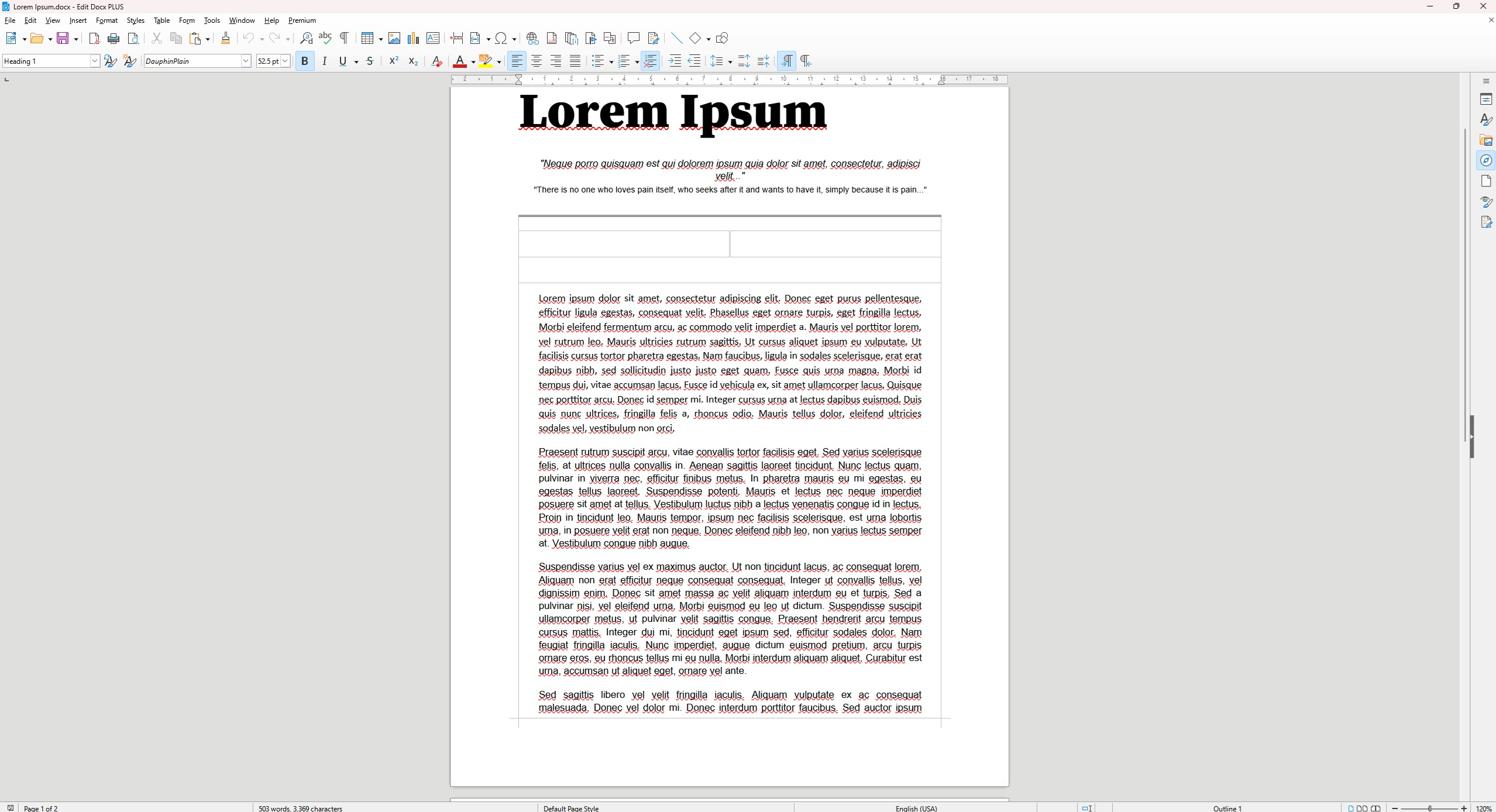
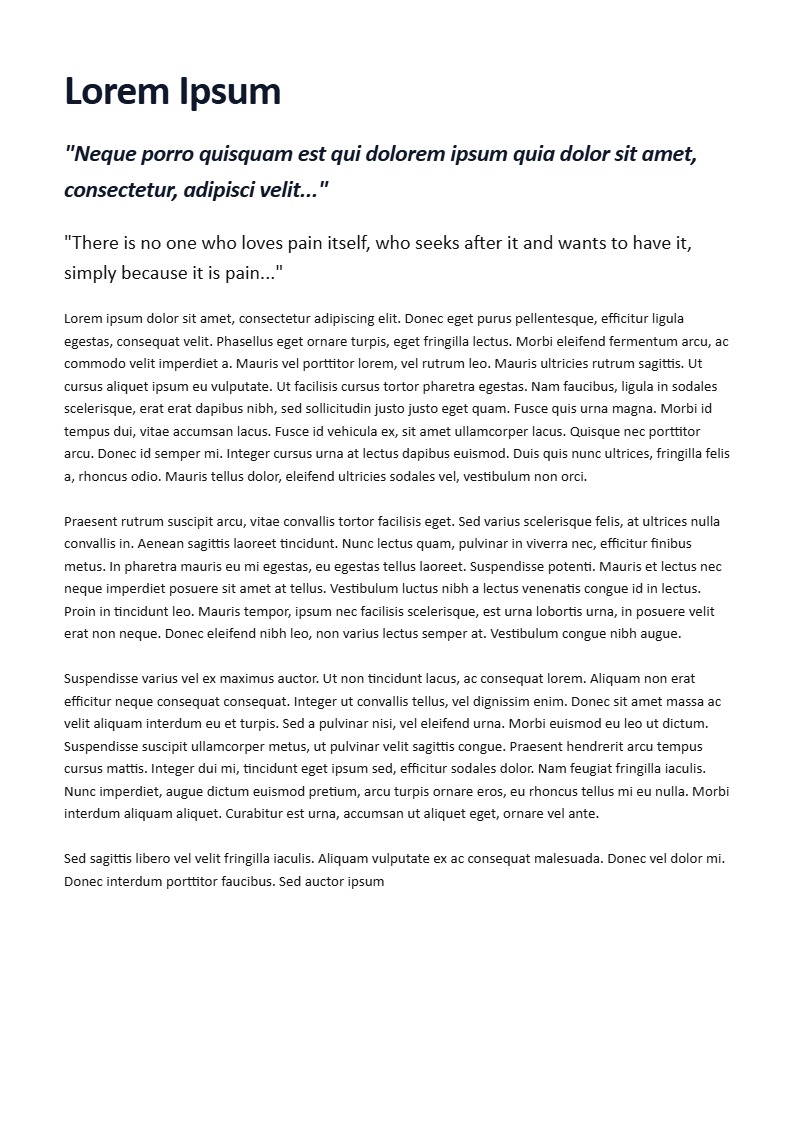
What you can convert
The tool is built around the modern Word format (.docx), which is what every version of Word from 2007 onwards saves by default. It handles:
- Headings, paragraphs and inline formatting (bold, italic, underline)
- Bullet and numbered lists
- Tables
- Embedded images inside the document
- Hyperlinks (rendered as styled text)
- Multi-page documents (output as a single tall JPEG, perfect for scrolling previews)
If you’re working with a legacy .doc file (Word 97–2003), open it in Word or Google Docs first and re-save it as .docx — the converter will tell you if it spots an old format.
Quality, file size and resolution
By default the converter outputs a JPEG at roughly 794 pixels wide — the same width as a standard A4 page at 96 DPI. That’s wide enough to look crisp on a phone screen, in an email preview, or as a Pinterest pin, while keeping the file small.
Quality is set to 92%, which is the sweet spot used by most professional photo workflows: visually indistinguishable from the source, but a fraction of the file size of a 100% lossless export.
If you need something different — say, a higher-quality export for print, or a smaller file for a slow blog — leave us a comment and we’ll add it.
Best uses for Word-to-JPEG conversion
Real-world reasons people use this tool every day:
- Sending quotes and invoices to clients who view email on mobile.
- Sharing recipes, study notes and printables on Pinterest, Instagram and Facebook.
- Embedding policies and terms into WordPress posts without long blocks of text.
- Submitting CVs and cover letters to job portals that prefer images.
- Creating social proof posts with testimonials originally written in Word.
- Turning meeting minutes into something you can paste into Slack or Teams.
- Archiving signed letters as flat, tamper-evident images.
Is it safe to use an online Word to JPG converter?
It depends entirely on how the tool is built. Most converters upload your .docx to their server, run the conversion there, and email you a download link. That means a copy of your document sits on someone else’s hard drive — sometimes briefly, sometimes much longer.
Our tool takes the opposite approach. The conversion happens entirely in your web browser using a local JavaScript library. Your document is never sent anywhere. You can confirm this yourself by opening your browser’s network inspector while you convert — you’ll see no uploads at all.
For sensitive content (legal, medical, financial, internal company documents), this matters a lot.
Frequently asked questions
Is this Word to JPEG converter really free?
Yes — completely free, no sign-up, no watermark, no daily limit. There’s nothing to buy and no premium tier hiding behind a button.
Does it work on Mac, Windows, Chromebook, iPhone and Android?
Yes. It runs in any modern browser — Chrome, Safari, Firefox, Edge, Brave, Samsung Internet. There’s nothing to install.
Will the JPG look exactly like my Word document?
It’ll look very close. Fonts are mapped to common web equivalents (Calibri/Arial), and complex Word features like headers, footers and footnotes are simplified. For 99% of everyday documents — letters, CVs, invoices, recipes, articles — the output is clean and faithful.
Can I convert a multi-page Word document?
Yes. A multi-page document becomes one tall JPEG that contains all the pages stacked vertically. This is ideal for scrolling previews on phones and social media. If you’d prefer one JPG per page, let us know.
Is my document uploaded to your server?
No. Conversion happens entirely in your browser. Your file stays on your computer. We don’t see it, store it, or transmit it.
What’s the maximum file size?
Up to 20 MB by default, which is enough for several hundred pages of typical text. If your document is larger, it’s usually because of embedded images — try compressing them first inside Word.
Can I convert .doc files (the older Word format)?
Not directly. Open the .doc file in Word, Google Docs, or any free office suite, then save a copy as .docx. The converter will then handle it.
What about PDF? Should I convert Word to PDF first?
Only if you specifically need a PDF as an intermediate step. Going straight from Word to JPEG with this tool skips that round-trip and gives you a smaller, more shareable file.
Is the output JPG good enough for printing?
For casual prints (a flyer, a page taped to a fridge, a pinboard notice) — yes. For professional commercial print, you’ll want a higher-DPI export; PDF is a better format for that use case.
Can I batch-convert multiple Word files at once?
Yes — drop several .docx files in at the same time and they’ll convert one after another. Each one downloads as its own JPEG.
Why is the converted image taller than my Word page?
A multi-page Word document becomes a single tall JPEG so you don’t have to download multiple files. If your one-page document looks taller than expected, it’s because Word’s print page size is being mapped to a continuous web-style layout.
Do I need internet to use the tool after the page loads?
The page loads its converter in the background, so once it’s open you can usually convert files even if your connection drops.
Got a Word file open right now? Scroll up, drop it in, and you’ll have a JPEG in your Downloads folder before you finish reading this sentence.
Free Online Word Tools
Free word document converter tools. Fast, private and browser-based.