
Convert Word to WebP Without Uploading Anything
Drop a DOCX file into ResizeLab’s Word to WebP Converter and each page turns into a WebP image in your browser. No upload. No queue. No account. The file stays on your computer the entire time.
WebP is the image format Google built for the web. It produces smaller files than JPG and PNG while keeping visual quality high. When you convert a Word document to WebP, you get images that load faster, use less bandwidth, and work on every modern browser. This matters if you are embedding document pages into a website, a blog post, or a knowledge base.
Batch conversion works the same way. Add three, five, or ten DOCX files and run them all through one session. The output is a ZIP file of WebP images, one per page, with filenames you can trace back to the original document.
What is WebP?
WebP is an image format developed by Google in 2010. It is designed to replace both JPG and PNG on the web by combining the best qualities of both. WebP supports lossy compression like JPG, which produces small files with some quality loss. It also supports lossless compression like PNG, which preserves every pixel exactly. And it supports transparency, which PNG handles but JPG does not.
The key advantage is file size. A WebP image is typically 25% to 35% smaller than a JPG at the same visual quality, and up to 80% smaller than a PNG. For a website owner, this means faster page loads, lower bandwidth costs, and better search engine rankings. For a user converting a Word document, it means you can share document pages as images without bloating your email or your website.
WebP is supported by every modern browser. Chrome, Firefox, Safari, Edge, and Opera all display WebP images natively. The only limitation is older software. Microsoft Paint on Windows 10 does not open WebP files. Some versions of Photoshop require a plugin. But for web use, WebP is universal.
WebP is not a document format. It is an image format. Once you convert a Word page to WebP, it becomes a flat picture. You cannot select the text, copy the chart data, or extract the embedded image. That is the tradeoff. You get a lightweight image that behaves exactly like any other image on the web.
Why Convert Word to WebP?
The reason depends on what you are doing with the output. Here are the specific cases where WebP is the right choice.
Smaller File Sizes Than PNG
PNG is lossless, which means every pixel is preserved. This is great for quality, but terrible for file size. A full-page PNG from a Word document is often 1 to 3 MB. The same page as a WebP at 90% quality is 300 to 800 KB. If you are embedding ten document pages into a blog post, the difference is 10 MB versus 3 MB. Your visitors will notice the load time.
Faster Website Loading
Google uses page speed as a ranking factor. Large images slow down your site. WebP images load faster because they are smaller. This is not a theoretical benefit. A 1 MB image takes three times longer to download than a 300 KB image on a 3G connection. If your audience includes mobile users on slow networks, WebP is the difference between a page that loads and a page that bounces.
Better for Web Publishing
When you publish a Word document page on the web, you want it to behave like a web asset. WebP is a web asset. It is optimized for the protocol that serves your website. It compresses well. It streams well. It caches well. PNG and JPG were designed for desktop software and print. WebP was designed for HTTP.
Good Image Quality
WebP does not look worse than JPG. At the same file size, WebP looks better. At the same quality, WebP is smaller. The algorithm is newer and more efficient. For text-heavy documents, the difference is visible. Small text stays sharper in WebP than in JPG at the same compression level. For charts and diagrams, the edges stay cleaner. The only visual loss is the same as JPG: very fine details can soften slightly. For most document pages, the quality is indistinguishable from the original.
Supported by Modern Browsers
Every browser that matters supports WebP. Chrome since 2012. Firefox since 2019. Safari since 2020. Edge since 2018. Opera since 2012. Mobile browsers are the same. If your audience is on the web, they can see WebP. The only exception is email clients. Some email clients do not support WebP. If you are sending images in an email, stick with JPG or PNG. For everything else, WebP works.
When Should You Use Word to WebP?
Here are the specific situations where converting a Word document to WebP is the right move.
Blog Posts
You wrote a product comparison, a data report, or a how-to guide in Word. Now you want to embed a formatted page in a blog post. You could paste the text and recreate the formatting, but that takes time and often breaks. You could screenshot the page, but that produces a PNG or JPG that is larger than necessary. Converting to WebP gives you a small, high-quality image that drops into any CMS. WordPress, Ghost, Medium, and every other platform handles WebP natively. To convert image files to WebP use our image tools hub to find the converter you need
Website Screenshots
Designers and developers often create page mockups or content drafts in Word. They convert the page to an image and use it as a placeholder in a design review. WebP is the best format for this because the file is small enough to email or share in Slack, and the quality is high enough to read the text. A PNG of the same page would be too large for casual sharing. A JPG would blur the text.
Social Media Graphics
Social platforms prefer images over documents. You cannot upload a DOCX to Twitter or LinkedIn. A WebP image of a document page posts directly and looks professional. The file is smaller than a PNG, so it uploads faster. The quality is better than a JPG, so the text stays readable when the platform compresses it. For single-page quotes, charts, or short reports, WebP is the most efficient format.
Documentation Previews
Technical writers often write in Word and publish in a documentation system. The fastest way to get a formatted example into a help article is to convert the page to an image and upload it. WebP is the best choice because the file is small, the quality is high, and the image loads instantly for the reader. The alternative is to recreate the formatting in the documentation CMS, which often fails. Tables break. Fonts mismatch. Spacing drifts. The WebP image preserves the exact appearance.
Knowledge Bases
Internal knowledge bases and wikis often mix text and images. A WebP image of a Word document page fits this workflow perfectly. It is small enough to store in the wiki without inflating the database. It is fast enough to load without a spinner. And it is sharp enough to read on a phone screen. For teams that share procedures, specs, or reports through a wiki, converting Word to WebP is faster than exporting to PDF and lighter than exporting to PNG.
How to Convert Word to WebP
The process is simple and takes seconds.
- Upload your DOCX file. Drag the file into the tool or click to browse. The tool accepts standard .docx files from Microsoft Word, Google Docs, LibreOffice, and other word processors.
- Wait for conversion. The tool renders each page in your browser. The speed depends on your device and the document size. A one-page resume takes less than a second. A 50-page report takes 10 to 30 seconds.
- Download the WebP images. Single-page documents download as one WebP file. Multi-page documents download as a ZIP archive containing one WebP per page.
- Use them anywhere. WebP works on every modern website, CMS, and browser. Upload the image, embed it, or share it directly.
Everything happens locally. No data leaves your device. The conversion engine does not require an internet connection after the page loads.
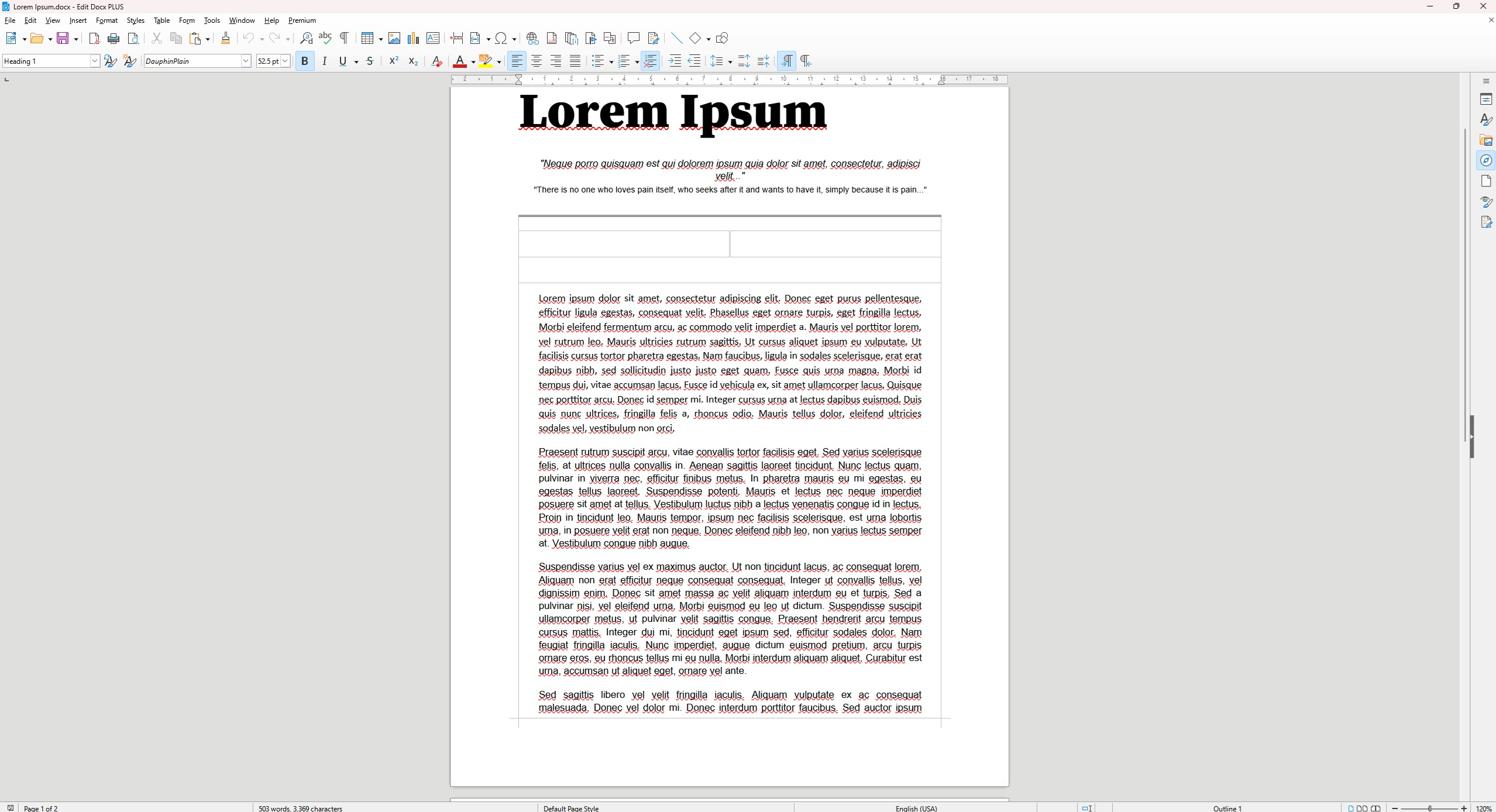
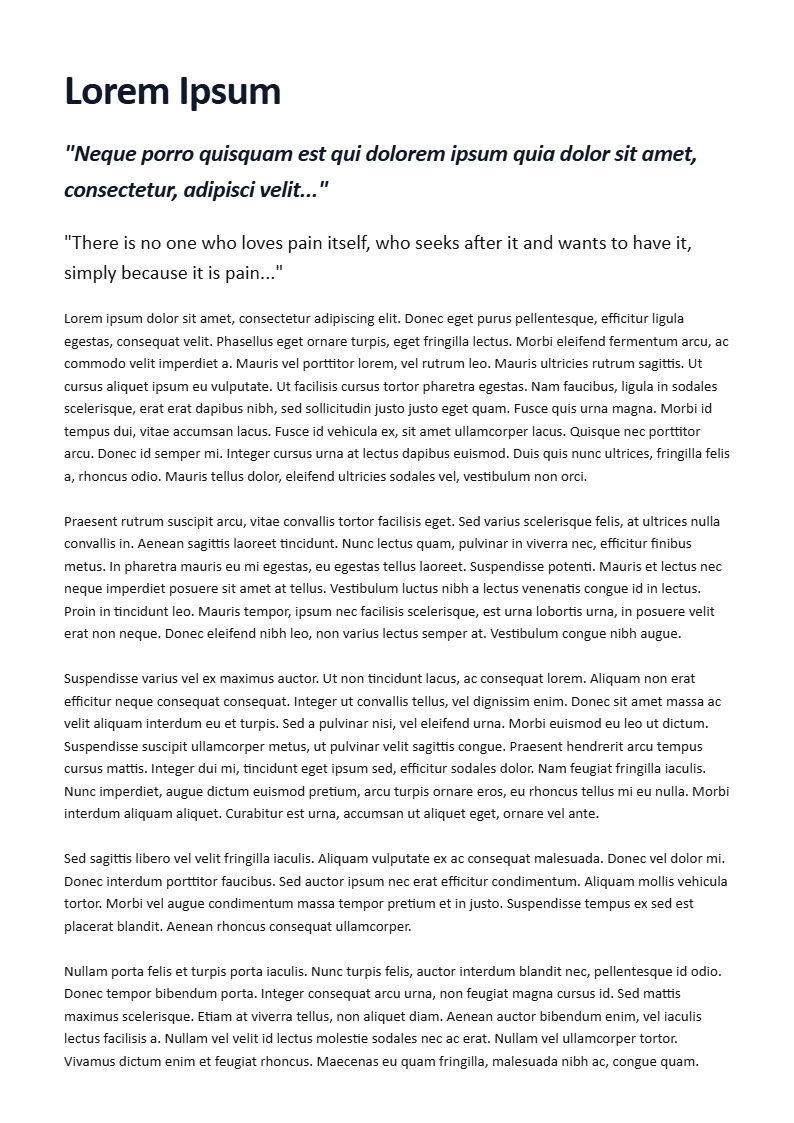
Before & After
A quick before and after from using our Word to WebP converter
Word vs JPG vs PNG vs WebP
| Format | File Size | Image Quality | Transparency | Web Performance | Browser Support |
|---|---|---|---|---|---|
| DOCX | Variable | Original | No | Not an image | Requires Word processor |
| JPG | Small | Lossy | No | Good | Universal |
| PNG | Large | Lossless | Yes | Slow | Universal |
| WebP | Smallest | Excellent | Yes | Fastest | Modern browsers |
The table makes the tradeoffs clear. DOCX is for editing. JPG is for universal sharing. PNG is for lossless quality. WebP is for the web. It is smaller than JPG, supports transparency like PNG, and loads faster than both. The only limitation is that very old software does not open it. For any modern website or browser, WebP is the best choice.
Common Uses for WebP Files
WebP is the standard format for web images. Here is what people actually use it for.
Website Images
Every image on a modern website should be WebP. Backgrounds, banners, icons, product photos, and screenshots all load faster as WebP. Google recommends WebP in its PageSpeed Insights tool. If your site uses PNG or JPG for images, you are leaving performance on the table. Converting Word document pages to WebP lets you treat document content as web content without the bloat.
Image Galleries
If you have a collection of document pages you want to display as a gallery, WebP is the right format. The gallery loads faster. The thumbnails are smaller. The full-size images are higher quality. And you can serve the same images to desktop and mobile without creating separate formats.
Thumbnails and Previews
WebP is ideal for thumbnails. A 200×200 pixel thumbnail in WebP is 5 to 10 KB. The same thumbnail in PNG is 30 to 50 KB. For a page with 20 thumbnails, the difference is 200 KB versus 1 MB. The page loads faster. The user scrolls smoother. The experience is better.
Embedding in CMS and Documentation
Content management systems like WordPress, Notion, and Confluence handle WebP natively. You upload the image and it works. No conversion. No plugin. No special handling. For documentation and help articles, this means you can drop a document page into an article in seconds and it will look the same for every reader.
Frequently Asked Questions
Is WebP better than JPG?
For the web, yes. WebP produces smaller files at the same visual quality. Text and edges stay sharper. The compression is more efficient. The only reason to choose JPG is if you need to send the image to someone using very old software that does not support WebP. For websites, social media, and modern apps, WebP is better.
Is WebP better than PNG?
For web use, yes. WebP supports lossless compression like PNG, so it can preserve every pixel. But the file is smaller. A lossless WebP is typically 20% to 30% smaller than the same image as PNG. For transparent images, WebP supports alpha channels with better compression. The only reason to choose PNG is if you need to edit the image in software that does not support WebP, or if you need the image to work in an email client.
Can I open WebP files on Windows?
Yes, but with a caveat. Windows 10 and 11 support WebP in File Explorer and the Photos app. Modern browsers open WebP natively. Older software like Microsoft Paint on Windows 10 does not support it. If you need to edit a WebP file, use GIMP, Photoshop, or an online converter. For viewing, any modern system works.
Is WebP good for websites?
WebP is the best image format for websites. It is smaller than JPG and PNG. It supports both lossy and lossless compression. It supports transparency. It is supported by every modern browser. Google uses it on its own properties. If you care about page speed, bandwidth, or user experience, you should use WebP.
Is Word to WebP free?
Yes. ResizeLab’s Word to WebP converter is free. There is no charge, no limit, and no premium tier. Convert as many documents as you need.
Is my file secure during conversion?
Yes. The file is processed entirely in your browser. It is never uploaded to a server. The conversion engine does not send your data to a third party. The output is generated locally and downloaded to your device. This is the most secure way to convert a document because there is no server to breach, log, or leak your data.
Can I convert DOCX to WebP on mobile?
Yes. The tool works in any modern browser on any device. The conversion runs locally on your phone, so it does not depend on a fast internet connection. Upload the file, convert, and download the ZIP. The process is the same on mobile and desktop.
Conclusion
WebP is the right format when you need a small, fast, high-quality image of a document page. It outperforms JPG and PNG on the web. It loads faster. It uses less bandwidth. It looks better at the same file size. And it is supported by every modern browser.
ResizeLab’s Word to WebP converter gives you all of this with zero setup. The conversion runs in your browser, so your files stay private. The output is a set of WebP images, one per page, ready to embed, share, or publish. Whether you need a single page for a blog post or a full report for a knowledge base, convert your DOCX to WebP and get the fastest, most efficient output available.
Free Online Word Tools
Free word document converter tools. Fast, private and browser-based.