
Convert Word to PNG Without Uploading Anything
Drop a DOCX file into ResizeLab’s Word to PNG Converter and each page turns into a PNG image in your browser. No upload. No queue. No email address. The file stays on your computer the entire time. If you convert a resume, the PDF version you also send to a recruiter does not touch the same server. If you convert a client invoice, the numbers never leave your device. The conversion happens with JavaScript running locally, not on a server that logs your data.
Batch conversion works the same way: you can add three, five, or ten DOCX files and run them all through one session. The output is a ZIP file of PNG images, each page named in a format you can trace back to the original document.
How to Convert Word to PNG
- Upload your DOCX file. Drag it into the tool or click to browse.
- Wait for conversion. The tool renders each page in your browser.
- Download the PNG images. One file per page, or a ZIP for multiple pages.
- Share or use them anywhere. PNG works on every platform and device.
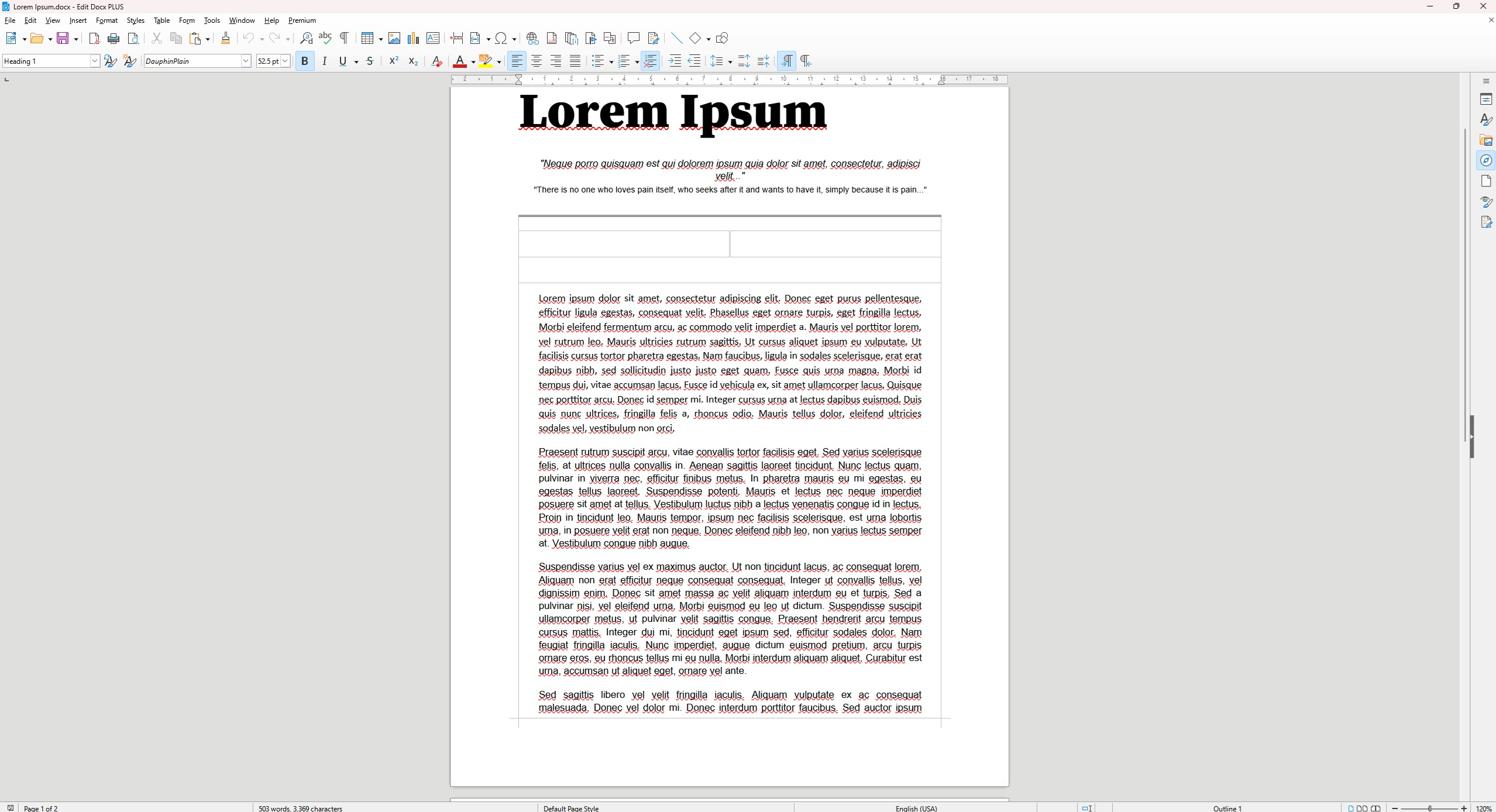
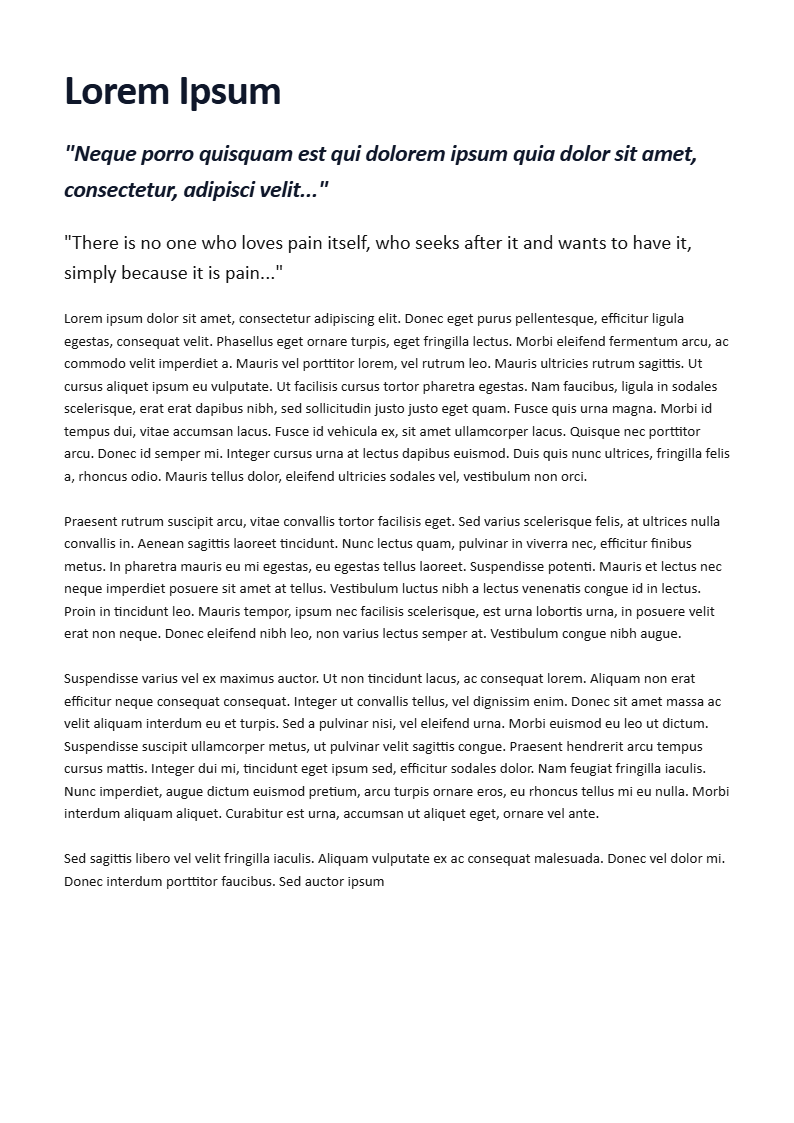
Before & After
Which Format Should You Choose?
| Format | Best For | Editable | Quality |
|---|---|---|---|
| DOCX | Editing and drafting | Yes | Original |
| PNG | Sharing as images | No | Lossless |
| JPG | Small image files | No | Lossy |
| Printing and documents | Limited | Excellent |
PNG is the right choice when you need a flat, embeddable image that looks exactly like the original document. JPG is smaller but loses quality. PDF preserves structure but is harder to embed. DOCX is for editing, not sharing.
Why PNG? When You Need an Image, Not a Document
PDF is the default for sharing documents, and DOCX is the default for editing them. But neither is an image. When you paste a PDF link into a Slack message, the recipient sees a link. When you paste a PNG image, they see the content. The difference is the difference between a reference and a preview.
PNG is the right output when the visual appearance of the page matters more than the document structure. Here is a concrete example: you have a one-page Word document with a chart, a table, and a short paragraph. You need to embed that page in a Notion document, a Jira ticket, a help article, and a slide deck. You could embed the Word file, but most platforms do not handle DOCX natively. You could convert to PDF, but then you are dealing with viewers, download prompts, and inconsistent rendering across devices. You convert to PNG and you get a single image that behaves exactly the same way in every context. It opens instantly. It looks the same on a phone screen and a projector. It never asks the viewer to download a plugin.
The tradeoff is that PNG is a flat image. You cannot select the text, copy the chart data, or extract the embedded image. That is exactly why PNG is useful for previews and references — it is a snapshot, not a source file. If you need the source file, you keep the DOCX. If you need the viewer, you use PNG.
PNG vs JPG for Document Conversion
This is the most common question, and the answer depends on what you are doing with the output.
PNG is lossless. The file contains every pixel exactly as it was rendered. Text stays sharp at any zoom level. Thin lines in tables and charts do not break apart. Colors in a company logo or a diagram do not shift. If you are converting a document that contains text, a table, or any graphic element, PNG is the safer choice because you do not lose detail you might not notice until someone zooms in.
JPG is lossy. The compression algorithm saves space by discarding information. It is designed for photographs, where the human eye does not notice the missing detail. For documents, the effect is visible. Text becomes soft around the edges. Solid-color backgrounds develop subtle noise. A 1-pixel border becomes a 2-pixel blur. The file is smaller, but it looks worse. The question is whether the recipient cares.
PNG is the right choice when: the document contains text, charts, tables, diagrams, or logos. The file will be viewed on screens, embedded in websites, or shared in professional contexts. You want the recipient to zoom in and still read the details. The output will be reused, edited, or archived. You want the file to look identical after every save.
JPG is the right choice when: the document is a single page with a large photograph and minimal text. File size is your primary constraint. The image will be viewed at a small size where compression artifacts are invisible. You are sending a casual preview and do not care about perfect fidelity.
File size reality: A full-page PNG from a typical Word document is 300 KB to 1.5 MB. The same page as a JPG at 90% quality is 150 KB to 700 KB. For a 20-page report, the difference is meaningful — a PNG ZIP might be 12 MB, while the JPG ZIP is 6 MB. For a single-page resume, the difference is irrelevant — both are under 1 MB. The practical rule: if the document is short, use PNG. If the document is long and the content is mostly photos, consider JPG. If you are unsure, use PNG and do not worry about the size.
ResizeLab has both tools. You can convert to JPG with our Word to JPG converter or to PNG with the tool on this page. Both run in the browser, both produce the same page layout, and both work with the same input files. The only difference is the output format.
PNG vs PDF: When an Image Beats a Document
PDF is the standard for document distribution. It preserves text, fonts, images, and formatting. It works on every device. It is the right format for sending a contract, a report, or a manual. But PDF is not always the right format for sharing a document visually. Here is when PNG is better.
Embedding. Most content management systems handle images natively. A PNG drops into a WordPress page, a Notion block, a Confluence article, or a Jira description with one upload. A PDF requires an iframe, a plugin, or an external viewer. On mobile, a PDF often forces the user to download a file before they can see it. A PNG opens immediately. If you are building a help center, a blog post, or a documentation page, PNG is the faster, cleaner embed.
Previews and thumbnails. When you need to show a preview of a document without the full file, a PNG thumbnail is the only format that works reliably. Social media platforms generate image previews automatically. They do not generate PDF previews. Website builders show image placeholders in the design view. They do not show PDF pages. A PNG of a document page is a visual asset that every platform understands.
Security. PDFs can contain JavaScript, embedded links, and hidden objects. They are a common vector for phishing and malware. A PNG is a flat image. It cannot execute code. It cannot redirect to a malicious site. It cannot hide metadata. If you are sending a document to an audience you do not control, or posting it publicly, PNG removes the risk entirely. The recipient sees exactly what you see. Nothing more.
Single-page sharing. If you have a 10-page report and only need to share page 3, a PDF forces you to extract the page or send the whole document. A PNG converter gives you a separate image for every page. You download the ZIP, extract the one page you need, and share it. The recipient does not see the other nine pages. The context stays clean.
When to use PDF instead: The recipient needs to search the text, copy passages, print the document with correct pagination, or archive it in a document management system. PDF preserves the document structure. PNG preserves the visual appearance. If structure matters, use PDF. If appearance matters, use PNG. For PDF conversion, use our Word to PDF converter.
How PNG Quality Works for Document Pages
PNG compression is not like JPG compression. It does not throw away pixels. It finds patterns in the image and stores them efficiently. The result is a smaller file with zero quality loss. This is why PNG is the standard format for screenshots, UI graphics, and technical diagrams.
For document pages, PNG compression works well because the content is predictable. A page of text has large areas of white background. A table has repeating horizontal lines. A chart has blocks of solid color. PNG compression identifies these patterns and stores them compactly. The file size is smaller than you might expect for a lossless image.
The practical limit is not quality. It is dimensions. A PNG of a full document page is typically 800 to 1200 pixels wide. At that size, the text is readable and the file is manageable. If you need to print the image at high resolution, you can scale up, but the file size scales with the square of the width. A 2400-pixel-wide PNG is four times the size of a 1200-pixel-wide PNG. For screen use, the default resolution is sufficient. For print, you might need to scale up or use PDF instead.
Real-World Use Cases
Here are the situations where people actually convert Word to PNG, with the details that matter in each case.
Social Media Posts
LinkedIn, Twitter, and Instagram do not accept DOCX or PDF files in posts. You can paste a link, but the engagement is lower than a native image. A PNG of a single-page document — a quote, a chart, a short report — posts directly and looks professional. The text is sharp enough to read on a phone screen. The background is consistent. The image does not change its appearance based on the viewer’s PDF reader or font availability.
Specific example: a marketing team writes a one-page case study in Word. They convert it to PNG, add a small logo in the corner using a basic image editor, and post it on LinkedIn. The post gets 3x the engagement of a PDF link because the content is visible immediately. The PNG does not require the viewer to click, download, or open a separate app.
Website Content and Help Articles
Technical writers and product managers often write documentation drafts in Word. The final version goes into a help center or a blog. The fastest way to get a formatted example into the article is to convert the Word page to PNG and upload it as an image. The alternative is to recreate the formatting in the CMS, which often fails — tables break, fonts mismatch, and spacing drifts. The PNG preserves the exact formatting from the Word document. The reader sees the page as the author intended.
Specific example: a software company writes a quick-start guide in Word with a screenshot, a numbered list, and a table of keyboard shortcuts. They convert the page to PNG and embed it in their documentation site. The page loads in a blog post, a README file, and a knowledge base without any reformatting. The image is the same everywhere.
For other image conversion needs, our online image tools page has additional utilities.
Client Presentations and Proposals
When a designer or consultant presents a proposal, they often want to show a formatted document page as part of a slide deck. Copying the content from Word into PowerPoint or Google Slides breaks the formatting. Fonts change. Tables resize. Images shift. Converting to PNG preserves the exact layout. The designer drops the image into a slide and it fits perfectly.
Specific example: a consulting firm creates a two-page project scope document in Word. They convert the first page to PNG and use it as the title slide in their client presentation. The second page becomes a reference image in the appendix. The client sees the exact document they will sign, formatted exactly as the firm intended. No surprises, no font substitutions, no broken tables.
Documentation and Version Control
Design and engineering teams often use PNG images of document pages as reference files in version control systems. A PNG of a requirements document, a spec sheet, or a test plan becomes a static asset that the team can reference in tickets, pull requests, and design documents. The image never changes unless the source document is re-exported. This is useful for tracking what the team agreed to at a specific point in time.
Specific example: a product manager writes a feature specification in Word. Before the sprint starts, they convert the spec to PNG and attach it to the Jira epic. The development team references the image throughout the sprint. If the spec changes mid-sprint, the old PNG remains attached to the epic as a record of what was originally agreed. The team has a visible, immutable reference point.
Invoice and Receipt Previews
Businesses that send invoices or receipts often want to show a preview image on their website or in an email. A PDF preview requires a viewer. A PNG preview is instant. The customer sees the invoice immediately, without downloading anything. The image is the same on every device. There are no rendering differences between Adobe Reader, Preview, and Chrome’s built-in PDF viewer.
Specific example: a freelancer sends an invoice to a client. They attach the PDF for the client to download, but they also include a PNG preview in the email body. The client sees the invoice total, the line items, and the due date before they open the attachment. The PNG preview is faster to review, easier to forward, and less likely to trigger a security warning in the recipient’s email client.
Screenshots and Bug Reports
QA testers and support teams often need to show what a document looks like in a specific state. A PNG of a Word document is a static, uneditable image that captures the exact appearance. The tester can annotate it with arrows, highlights, and notes. The developer sees the problem without needing to open the source file. The image is reproducible — anyone can open it and see the same thing.
Specific example: a QA tester finds a formatting bug in a generated Word document. Instead of attaching the 4 MB DOCX file to the bug report, they convert the page to PNG and attach the 300 KB image. The developer sees the misaligned table immediately, without downloading the full document or worrying about font availability. The bug report is faster to read and faster to fix.
How the Conversion Works
The process is simple, but the details matter for understanding what you get.
Step 1: Upload the DOCX file. Drag the file into the tool or click to browse. The tool accepts standard .docx files from Microsoft Word, Google Docs, LibreOffice, and other word processors. The file is read into the browser’s memory. It is not sent to a server.
Step 2: Render the document. The tool uses a local conversion engine to turn the DOCX file into HTML. This step preserves the formatting, fonts, images, and layout. The rendering happens in your browser, so the speed depends on your computer’s processing power and the document’s complexity. A one-page resume takes less than a second. A 50-page report with embedded images takes 10–30 seconds.
Step 3: Capture each page as PNG. The rendered document is divided into pages. Each page is captured as a PNG image at a resolution that matches the original document’s dimensions. The output is a set of PNG files, one per page. The filename includes a random identifier so you can distinguish it from other conversions: resizelab.app-XXXXXX-XXXXXX.png.
Step 4: Download. Single-page documents download as a single PNG file. Multi-page documents download as a ZIP archive containing one PNG per page. You can also convert multiple DOCX files in one session. The batch queue processes each file in order and packages all output into a single ZIP.
The entire process is local. No data leaves your device. The conversion engine does not require an internet connection after the page loads. If you are on a plane, in a coffee shop with a slow connection, or on a corporate network with strict upload restrictions, the tool works the same way.
Frequently Asked Questions
Is Word to PNG free?
Yes. There is no charge, no limit, and no premium tier. You can convert as many documents as you need, as often as you need. The tool is supported by the ResizeLab suite, not by charging users per conversion.
Is PNG better than JPG for documents?
For documents with text, charts, tables, or logos, yes. PNG is lossless, so the output is identical to the original rendered page. JPG is lossy and creates visible artifacts around text and lines. The only reason to choose JPG is if you need a smaller file and can accept some quality loss. For a detailed comparison, try both tools and compare the output. The Word to JPG converter and the Word to PNG converter on this page use the same input and the same rendering engine. The only difference is the output format.
Does PNG support transparency?
Yes. PNG supports full alpha transparency. If your document has a transparent background or you plan to overlay the image on a colored background, PNG handles it correctly. JPG does not support transparency. Transparent areas in a JPG become white or black. This is important for designers and anyone compositing images.
Can I convert DOCX to PNG on my phone?
Yes. The tool works in any modern browser on any device. The conversion runs locally on your phone, so it does not depend on a fast internet connection. The interface is the same on mobile and desktop. Upload the file, convert, and download the ZIP. The process is identical.
Is my file secure during conversion?
Yes. The file is processed entirely in your browser. It is never uploaded to a server. The conversion engine does not send your data to a third party. The output is generated locally and downloaded to your device. This is the most secure way to convert a document because there is no server to breach, log, or leak your data.
Can I convert multiple Word documents at once?
Yes. The tool supports batch conversion. You can add multiple DOCX files to the queue, convert them all in one session, and download the results as a single ZIP. Each page of each document is converted to a separate PNG. The output is organized by filename so you can match each PNG to its source document.
What is the difference between PNG and PDF?
PNG is an image. PDF is a document. PNG is a flat picture of a page — easy to embed, share, and preview. PDF preserves the document structure — text is selectable, pages are navigable, and the file is designed for reading and printing. Use PNG when you need an image. Use PDF when you need a document. For PDF conversion, use our Word to PDF converter.
Why choose PNG over JPG for Word documents?
PNG preserves every pixel. Text stays sharp. Charts and diagrams stay crisp. Colors stay accurate. JPG creates compression artifacts that blur text and distort fine details. The file size is larger with PNG, but the visual quality is higher. If you are converting a document for professional use, archiving, or any situation where the appearance matters, PNG is the better choice. If you are converting a casual document and file size is your main concern, JPG might be acceptable. Try both and compare the output.
Conclusion
PNG is the right format when you need a document to behave like an image. It embeds in any platform. It opens instantly on any device. It looks the same everywhere. It cannot carry malware or hidden scripts. And it preserves the exact visual appearance of your Word document without the editability that sometimes gets in the way.
ResizeLab’s Word to PNG converter gives you all of this with zero setup. The conversion runs in your browser, so your files stay private. The output is a set of high-quality PNG images, one per page, ready to embed, share, or archive. Whether you need a single page for a social post or a full report for a help center, convert your DOCX to PNG and get the sharpest, most reliable output available.
Free Online Word Tools
Free word document converter tools. Fast, private and browser-based.